Home
Search
Bookmark
Account
Menu
Empowering Minds with Tech Knowledge.
91169653983
011-69653983
support@dvhosting.in
My Account
My Account
Logout
Home
aaPanel
cPanel
HestiaCP Panel
Instant Website
Basic Website
Ecommerce
News/Blog Website
Prime Website
Other
SaaS
Services
MariaDB as a Service
PostgreSQL as a Service
SMS
Storage
Cloud Drive
Storage Box
Vesta Panel
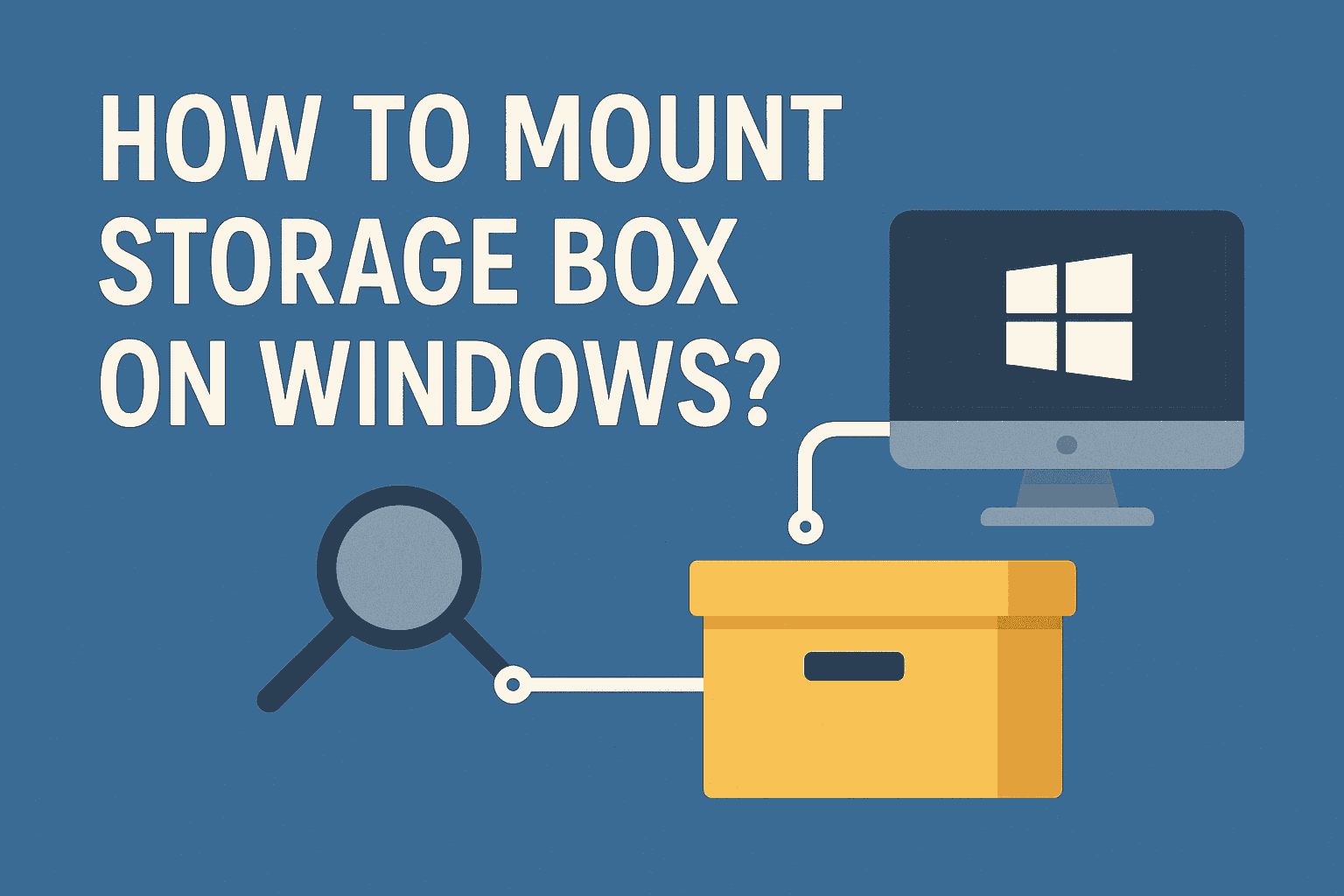
How to mount storage box in Windows?
02/December/2025 21:11
Comments (0) Share:
Bookmark
Note: SMB Support should be enabled to mount storage box using SMB.
1. Open “This PC”, Right-click inside the window → Map network drive.
2. Select a Drive Letter
3. Choose any free drive (example: Z:).
4. Enter the SMB path:
In the “Folder” box, enter:
\\HOSTNAME\backup
5. Enable the checkbox
✔ Reconnect at sign-in
✔ Connect using different credentials
6. In the pop-up, enter Username & Password.
7. Please contact the support team in case of any issue.
SMB is recommended. If you want to use WebDAV, please go ahead and enter the URL in the path.

Comments (0)
Leave a Reply
Your email address and mobile will not be published.
Your Name
Your Email
Your Mobile
Your Message
I acknowledge terms & conditions and privacy policy
Post Comment
Trending Blog
09/January/2025 14:26
How to setup a prime website?
17/October/2024 18:34
How to add a Subdomain/Domain in cPanel?
16/October/2024 19:04
How to setup basic website?
24/September/2024 17:12
How to install SSL in Vestacp Panel?
16/October/2024 17:52
How to delete the database in aaPanel?
29/September/2024 12:12
How to create email ID in HestiaCP Panel?
14/October/2024 22:53
How to install SSL in HestiaCP Panel?
16/October/2024 18:13
How to install software in aaPanel?
16/October/2024 12:24
How to install SSL in cPanel?
16/October/2024 22:55
How to setup News/Blog website?
Related Blog
01/December/2025 18:23
Comments (0)
How to enable WebDAV or SMB Protocol in Storage Box?
Read More
01/December/2025 18:39
Comments (0)
How to enable snapshot in Storage Box?
Read More
01/December/2025 14:21
Comments (0)
How to access Storage Box using FileZilla?
Read More
Subscribe our Newsletter
Subscribe