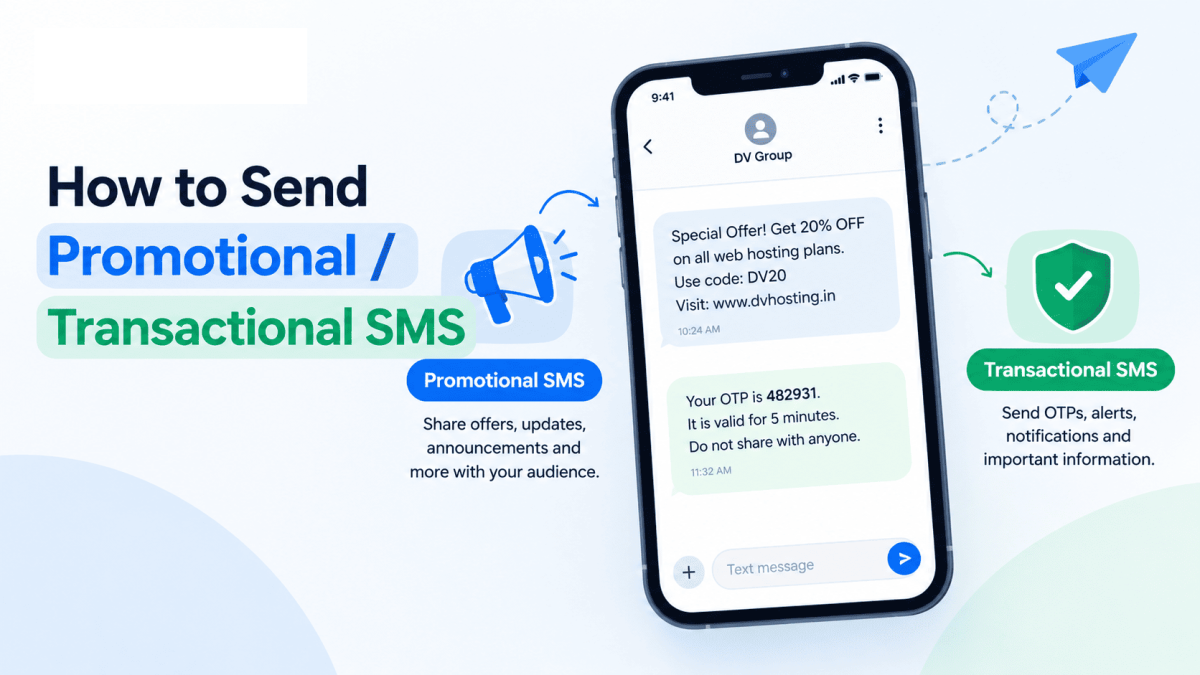
Whether you are sending high-priority OTPs, transactional updates, or large-scale promotional marketing campaigns, utilizing a modern, DLT-compliant SMS panel ensures fast delivery and full regulatory compliance.
In this step-by-step guide, we’ll walk you through configuring your account, uploading templates, executing campaigns (both large and small), analyzing delivery reports, and integrating via API using the DV Connect platform.
Before you begin: Contact our support team to create and bind the telemarketer chain in your DLT portal before configuring your settings.Step 1: Log In to the SMS Panel
-
Open your browser and navigate to the SMS Panel URL provided in your onboarding email or client area.
-
Enter your assigned credentials (Username / Sign-in ID and Password) to access your dashboard.
Step 2: Configure Your DLT Entity ID (PE ID)
Before you can dispatch messages across Indian telecom networks, TRAI regulations require your Principal Entity ID (PE ID) to be configured.
-
Navigate to the left navigation sidebar and click on Settings (under Account).
-
Locate the DLT entity ID (PE ID) field.
-
Enter your 19-digit Principal Entity ID (typically starting with
1101...provided by telecom portals like Jio, Airtel, Vi, or BSNL). -
Click Save profile.
Note: Every message sent from your account operates under this Entity ID, preventing unauthorized cross-account usage.
Step 3: Add & Approve Sender IDs (Headers)
Your Sender ID (or Header) is the 6-character sender name (e.g., DVGROP) that appears on the recipient's phone.
-
In the left menu under Messaging, click on Sender IDs.
-
Click Add header / Add a sender ID.
-
Enter your registered 6-character alphanumeric or alphabetic Header.
-
Confirm that your linked DLT Entity ID matches your registration, then click Add sender ID.
-
Wait for approval before proceeding to campaigns.
Step 4: Import Approved DLT Templates
Instead of manually typing and re-formatting each template message, you can bulk import them directly from your telecom operator export.
-
Go to DLT templates from the sidebar menu.
-
Download your approved template sheet (
.xlsx,.csv, or tab-separated) from your operator DLT portal (Jio, Airtel, Vi, BSNL, etc.). -
Drag and drop the file into the Drop your DLT template export here area, or click browse your computer.
-
Click Import templates.
-
The platform automatically detects the wording, variables (
%var%), approved headers, and template IDs while skipping duplicates.
-
Step 5: Sending Bulk Campaigns (> 1,000 Numbers)
When dispatching messages to broad audiences (over 1,000 recipients), use the dedicated Campaigns module:
-
Click on Campaigns in the sidebar menu and select + New campaign.
-
Step 1 — Recipients:
-
Upload CSV / File: Click to upload your
.csvfile. You can click Download a sample file / Sample CSV to get the correct structure. -
Format the spreadsheet with a
MOBILEorPHONEcolumn header, followed by template variable columns:VAR1,VAR2,VAR3, etc., matching the exact variables of your message. -
Alternatively, paste comma- or line-separated numbers directly into the input box.
-
-
Step 2 — Message & Template Setup:
-
Enter a descriptive Campaign name (e.g., Diwali Offer - March List).
-
Select your approved Registered DLT template from the dropdown.
-
Select your approved Sender ID / Header (if your account has multiple).
-
Map or fill in the variable placeholders (e.g., OTP, customer name, balance amount, or custom links).
-
-
Schedule & Send:
-
Choose to send immediately or select a scheduled date and time.
-
Click Create Campaign.
-
Step 6: Quick Sends (< 1,000 Numbers)
For ad-hoc or smaller batches (under 1,000 recipients):
-
Click on Send SMS in the left sidebar menu.
-
Select your registered Template.
-
Choose your designated Sender Header from the dropdown.
-
Fill in the required variable values.
-
Paste recipient phone numbers.
-
(Optional) Use the Send Test SMS button to verify the message format on a test mobile number.
-
Choose to dispatch immediately or set a schedule.
Step 7: Tracking & Downloading Delivery Reports
DV Connect provides real-time transparency for message statuses (Delivered, Pending, Failed, or Refunded).
-
Overall Summary: Go to Delivery reports under Insights on the sidebar to inspect global message logs.
-
Campaign-Specific Reports:
-
Click Campaigns from the sidebar.
-
Click on the specific campaign name to open its real-time analytics page.
-
View detailed counters: Total Recipients, Delivered, Failed, and Credits Charged/Refunded.
-
Click the Export button at the top-right to download full status logs in
.csvformat.
-
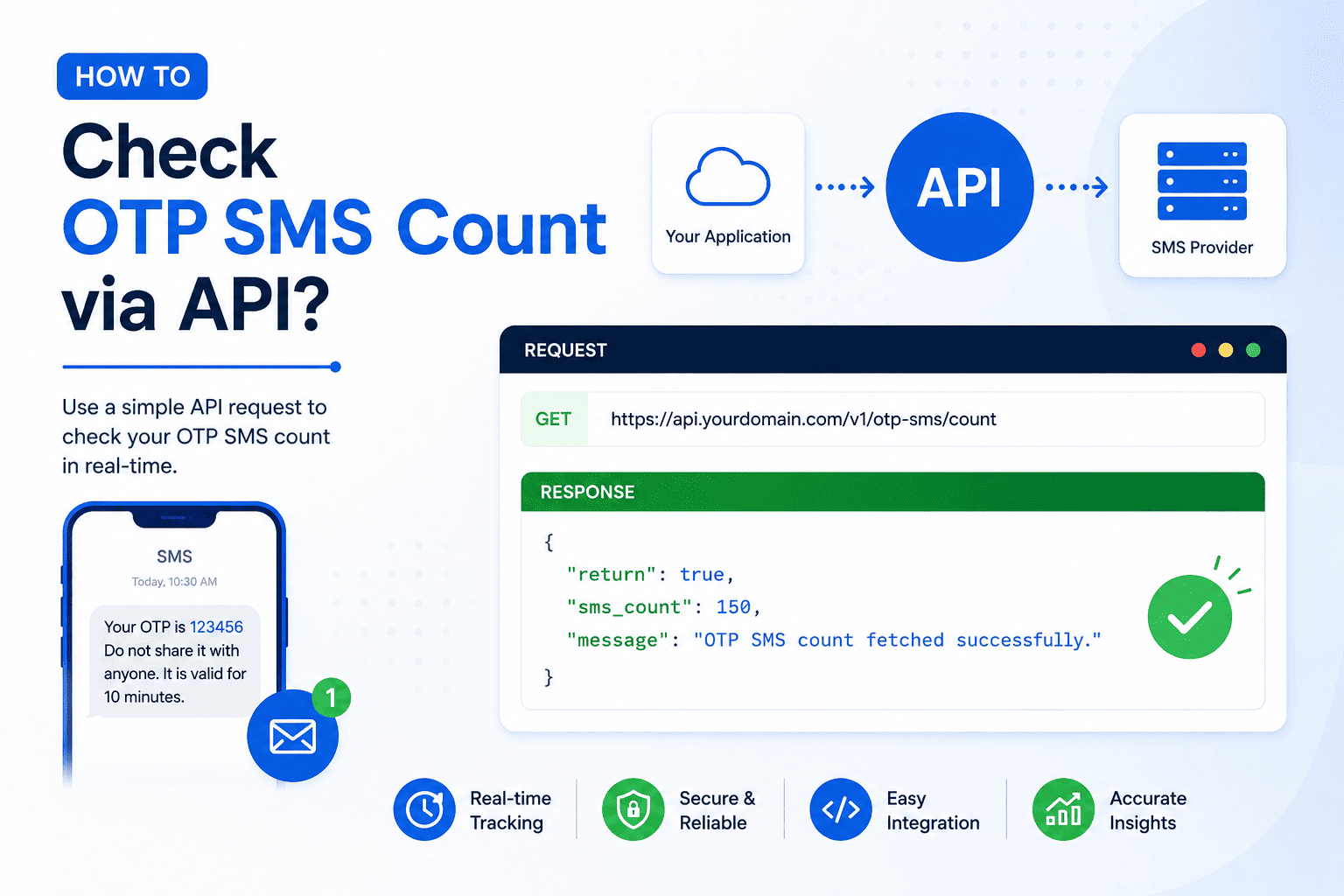
Step 8: Automating via API & API Keys
If you are integrating transactional SMS, OTPs, or notifications into your CRM, website, or backend services:
-
Click API & keys under Account in the left menu.
-
Generate API Key:
-
Under the Create a key section, enter a label (e.g.,
defaultorproduction-server). -
(Optional) Whitelist IP addresses for enhanced security.
-
Click Create key.
-
-
Authentication Options: You can authenticate either via your API Key (recommended) or using your User ID & Password.
Example Implementations
1. cURL with Bearer API Key (Recommended POST)
curl -X POST 'https://tsms.dvconnect.in/api/' \
  -H 'Authorization: Bearer sk_your_api_key' \
  -d 'method=SendMessage' \
  -d 'send_to=919812345678' \
  -d 'msg=Hello' \
  -d 'format=json'
2. cURL with Username & Password (POST)
curl -X POST 'https://tsms.dvconnect.in/api/' \
  -d 'method=SendMessage' \
  -d 'userid=your_user_id' \
  -d 'password=YOUR_PASSWORD' \
  -d 'send_to=919812345678' \
  -d 'msg=Hello%20world' \
  -d 'msg_type=TEXT' \
  -d 'header=DVGROP' \
  -d 'dltTemplateId=1177178453847349772' \
  -d 'auth_scheme=plain' \
  -d 'v=1.1' \
  -d 'format=json'
3. Single URL Link (GET Request)
For legacy software or webhook setups that only trigger single GET calls:
https://tsms.dvconnect.in/api/?method=SendMessage&userid=your_user_id&api_key=sk_your_api_key&send_to=919812345678&msg=Hello%20world&msg_type=TEXT&header=DVGROP&dltTemplateId=1177178453847349772&format=text
(Ensure message parameters are standard URL-encoded).
Best Practices & Pro Tips
-
Keep DLT IDs Updated: Always upload newly registered templates directly via
.xlsxor.csvexport to eliminate typographical mismatches with operator registries. -
Utilize Variable Previews: Always check the sample preview box before triggering scheduled broadcasts to verify column mappings (
VAR1,VAR2, etc.). -
Revocable Keys: Prefer API Keys over account passwords in code repositories—if compromised, API keys can be revoked instantly without disrupting account access.