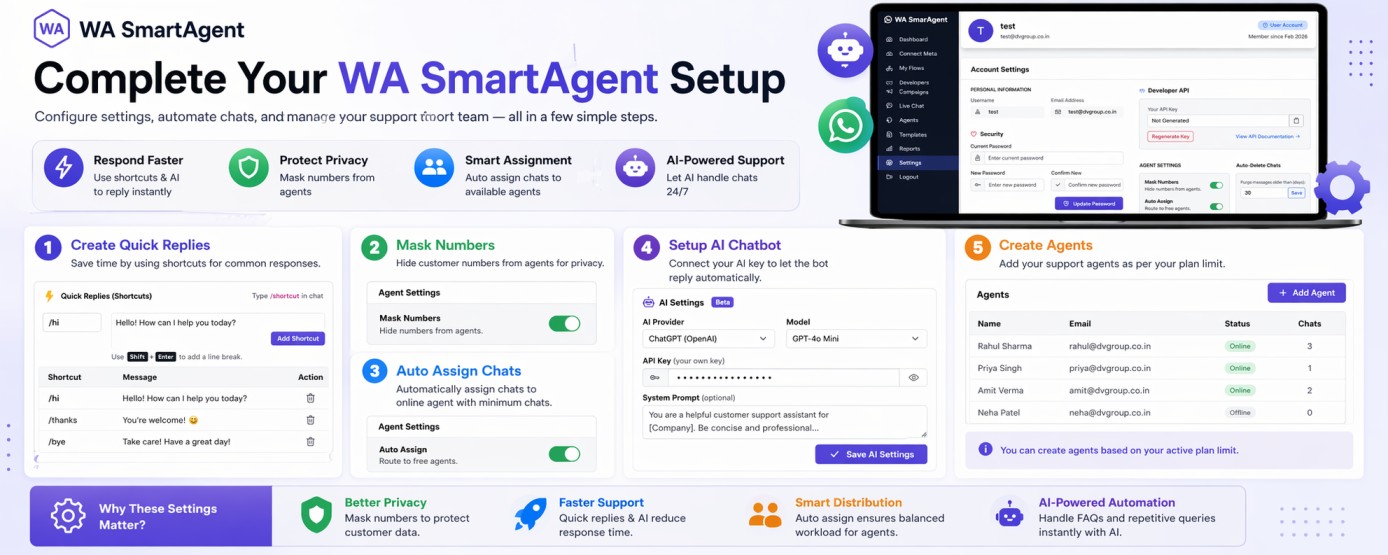
1. Login to your WA SmartAgent Portal and click on Settings from the left menu.
2. Use Quick Replies (Shortcuts) to save common responses for faster chat support.
a. Shortcut – Enter command like /hi
b. Message – Enter full reply message
c. Click Add Shortcut
3. Enable Mask Numbers: Turn on Mask Numbers to hide customer mobile numbers from agents.
4. Enable Auto Assign Chats: Turn on Auto Assign to automatically assign new chats to available online agents.
System will assign chats to the online agent with minimum active chats.
5. In AI Settings, connect your own AI API key.
Supported Providers:
a. ChatGPT (OpenAI)
b. Gemini
Fill Details:
a. AI Provider – Select ChatGPT or Gemini
b. Model – Choose model
c. API Key – Enter your key
d. System Prompt – Add chatbot instructions
e. Click Save AI Settings
Once enabled, AI can reply automatically in flows until an agent takes over.
6. Create Agents: From the left menu, click on Agents.
You can create support agents as per your active plan limit. Add agent login details and assign them to handle chats.
Important Note: Complete these settings first for smooth chat handling, automation, and team management.