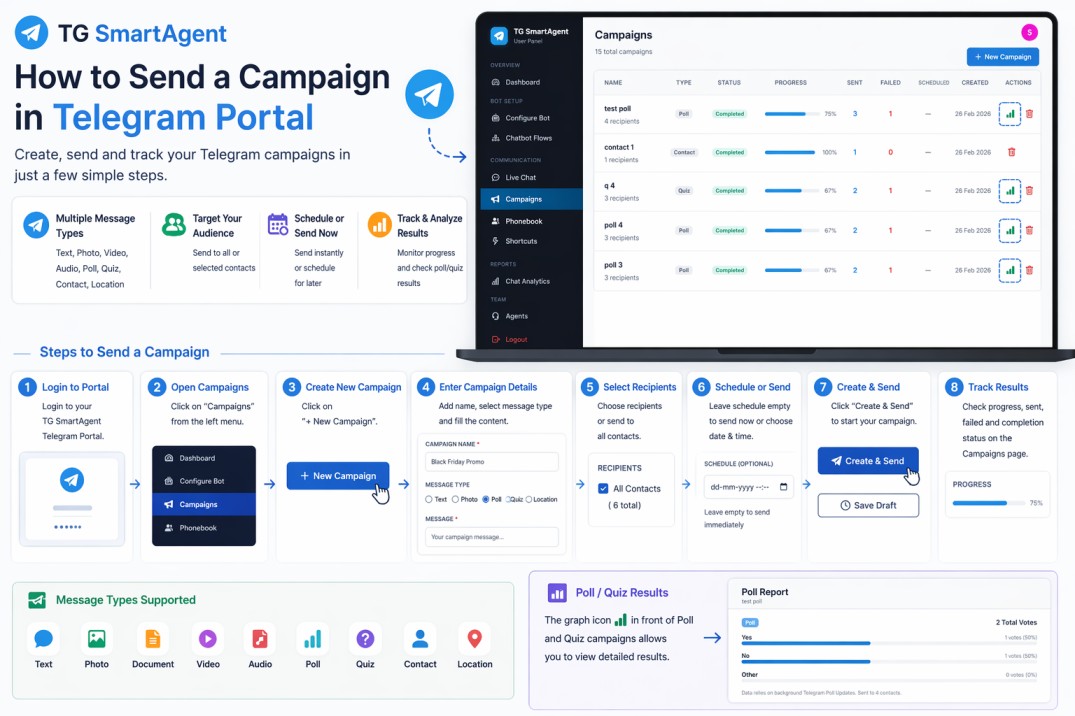
2. From the left menu, click on Campaigns.
Here you can view all sent campaigns, progress, sent count, failed count, schedule status, and actions.
3. Click on + New Campaign at the top right corner.
4. Enter Campaign Details. Fill the campaign setup form:
a. Campaign Name – Enter your campaign name.
b. Message Type – Select the type of message you want to send.
Available types: Text, Photo, Document, Video, Audio, Poll, Quiz, Contact, Location

5. Fill Content Based on Type
a. Text Campaign: Enter your message text.
b. Media Campaign: Add media URL and message caption.
c. Poll Campaign: Enter poll question and options.
d. Quiz Campaign: Enter question, options, correct answer index, and explanation.
e. Contact Campaign: Add contact details to share.
f. Location Campaign: Enter latitude and longitude coordinates.
6. Choose recipients or send to all contacts available in your phonebook.
7. Schedule or Send Now. You can:
a. Leave schedule blank to send instantly
b. Select date & time to schedule campaign for later
8. After filling all details, click Create & Send.
You can also click Save Draft if you want to send later.
9. Track Campaign Status: After sending, go back to the Campaigns page to monitor progress, sent, failed, and completion status.

10. The graph icon in front of each campaign is available for Poll and Quiz type campaigns.
Click the graph icon to view voting results and campaign responses.

Important Note: For media campaigns, use direct public file URLs supported by Telegram limits.